 kh@livingwithlogic.sg
How to create a scene in Iris Home
 Aug 5, 2026

What I want: one button that shuts the bathroom down — fan off, light off — instead of reaching for two switches on my way out.
That’s a scene. One tap, several things at once.
Here’s how to build it. About two minutes. Every screenshot below has the button to press circled in orange.
Two tabs, one difference
- Tap-to-Run — runs when you tap it. That’s a scene. This is the one we want.
- Automate — runs by itself, on a sensor or a timer.
One thing that throws people: the next screen is titled “Add Automation” even when you’re making a scene. Ignore it.
Step by step
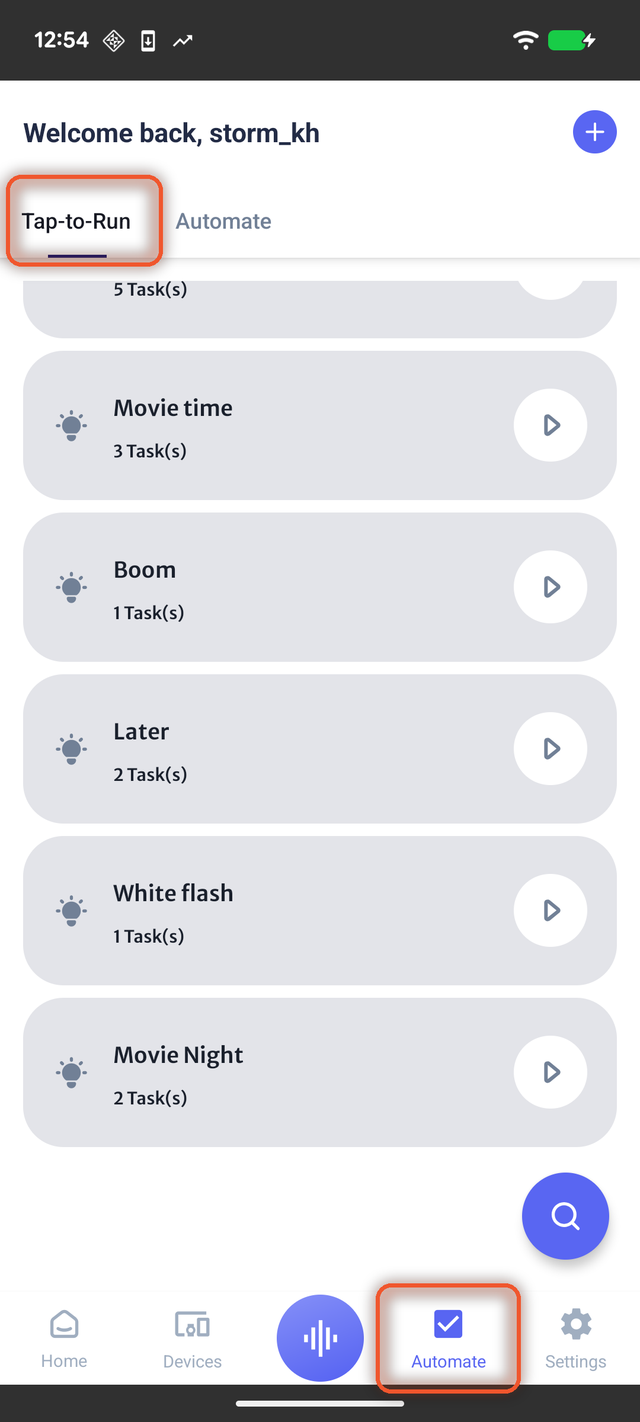
1Open Automate
Tap Automate at the bottom. Make sure the Tap-to-Run tab is selected.
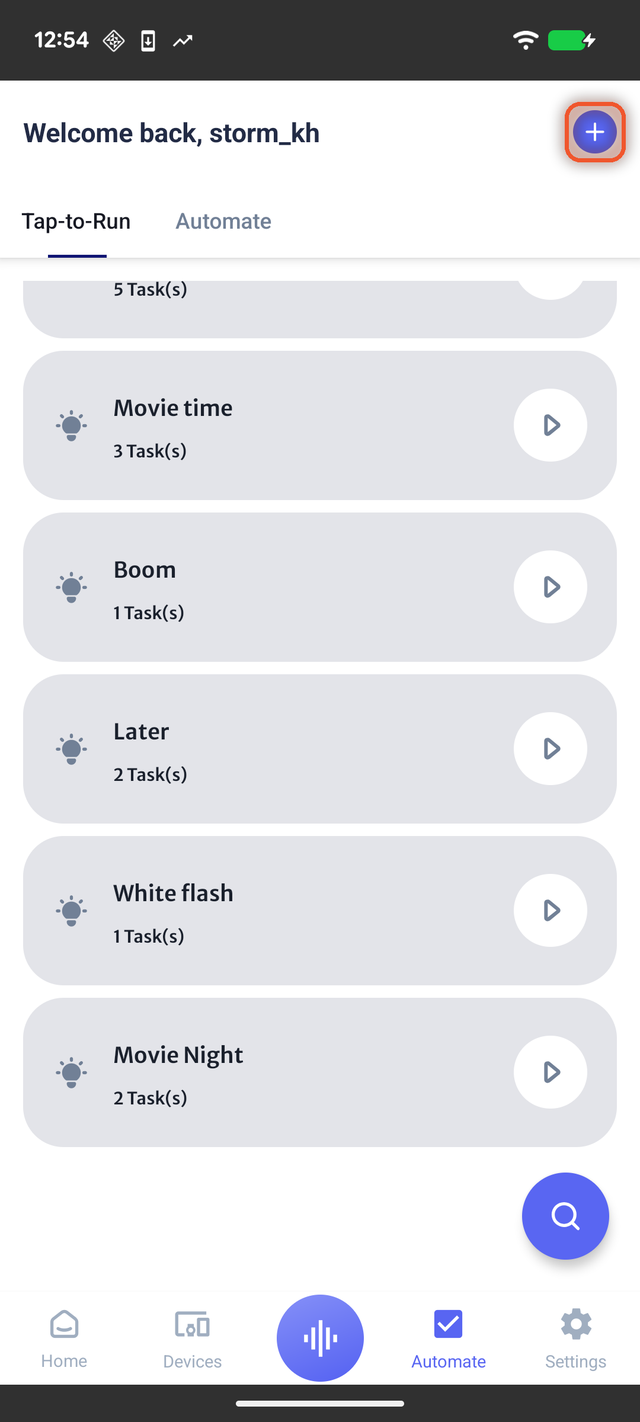
2Tap the + button
Top right corner.
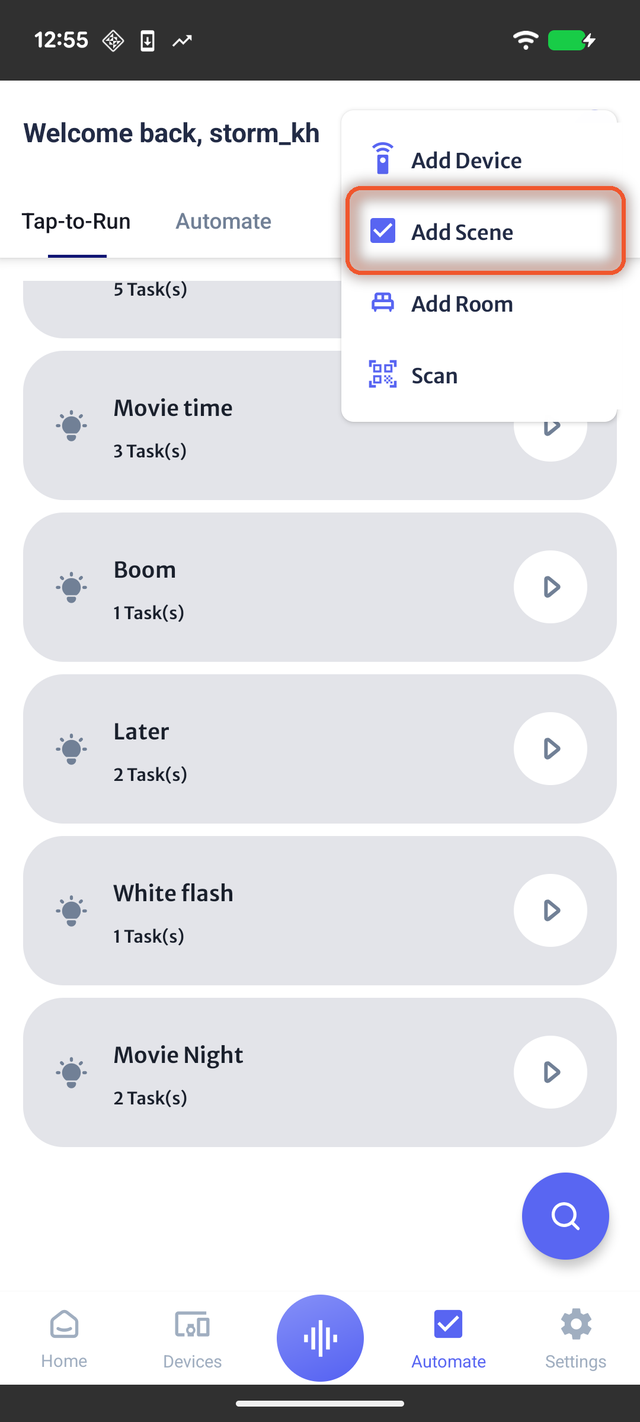
3Choose Add Scene
From the little menu that pops up.
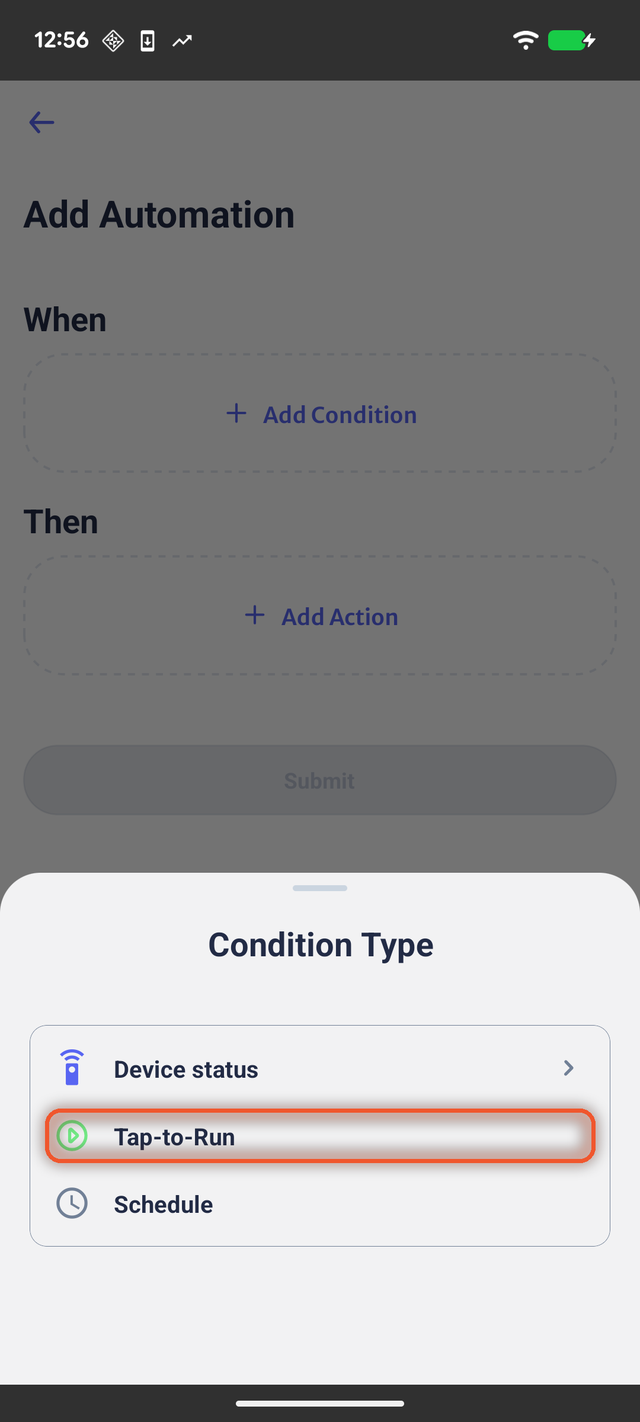
4Pick Tap-to-Run
Under When, tap + Add Condition, then choose Tap-to-Run.
This is the bit that makes it a scene instead of an automatic rule.
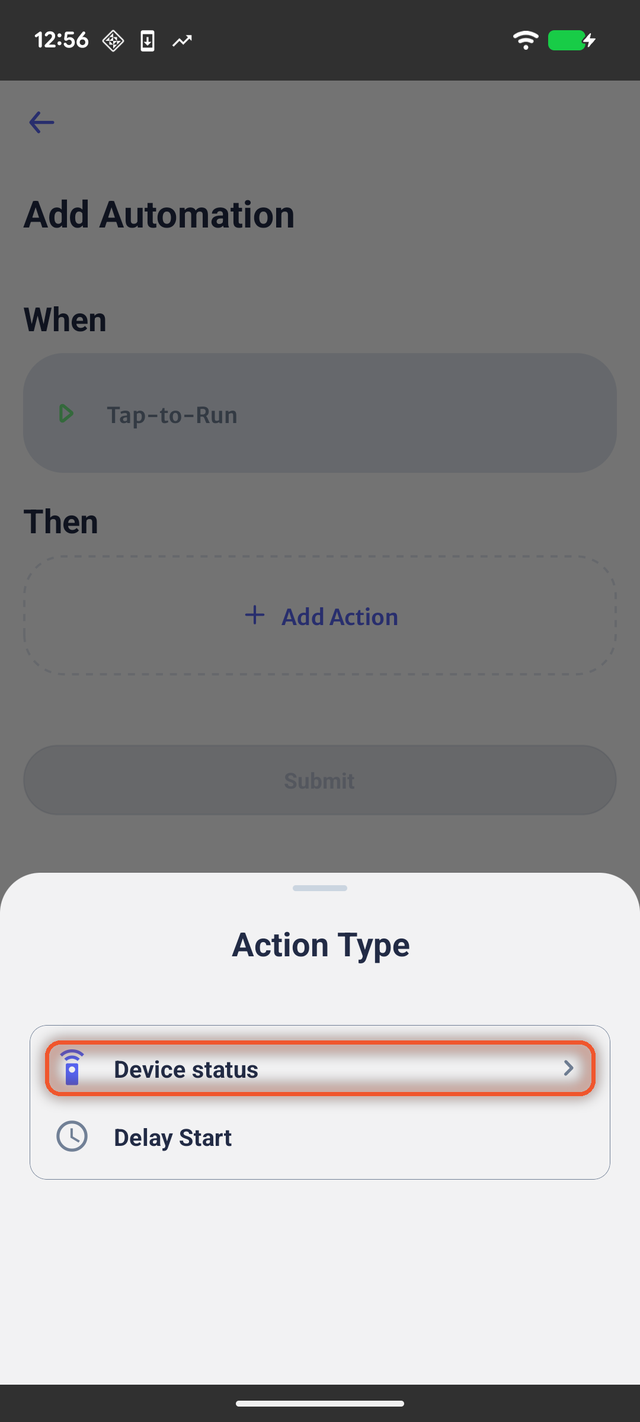
5Pick Device status
Under Then, tap + Add Action, then choose Device status.
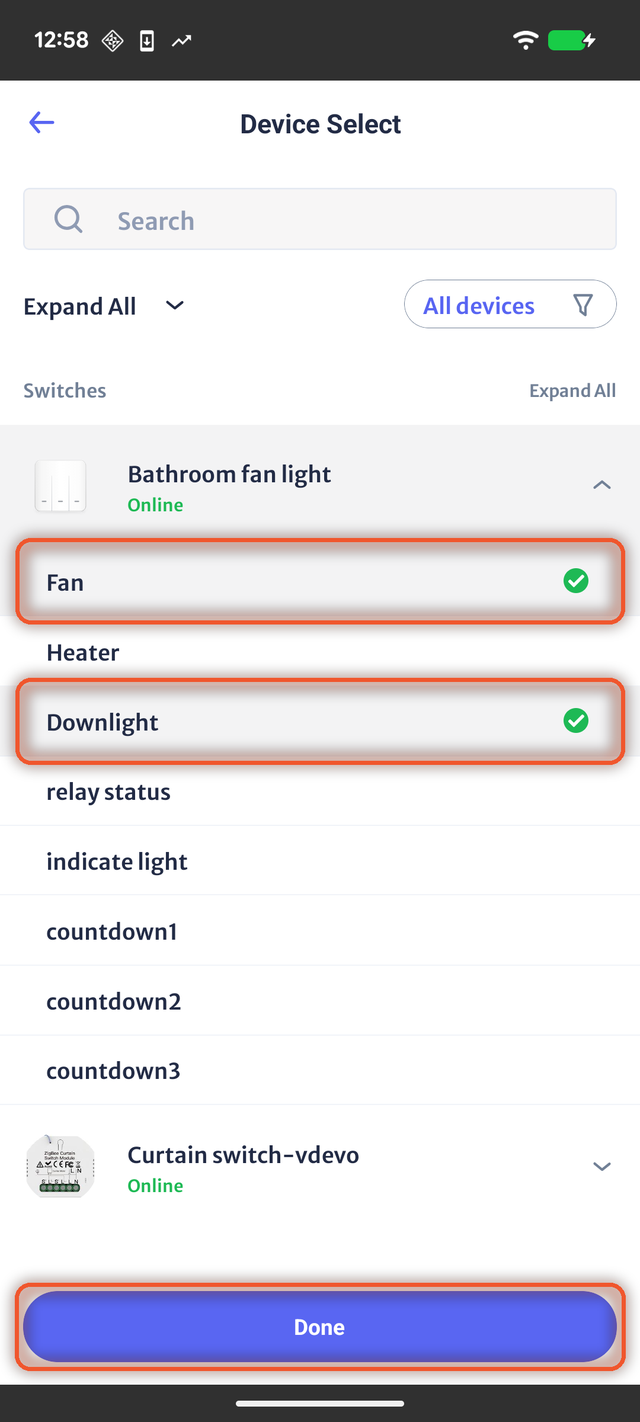
6Tick your switches
Find your device and tap the ⌄ arrow to open it.
My bathroom switch has three buttons — Fan, Heater, Downlight. I ticked Fan and Downlight, then tapped Done.
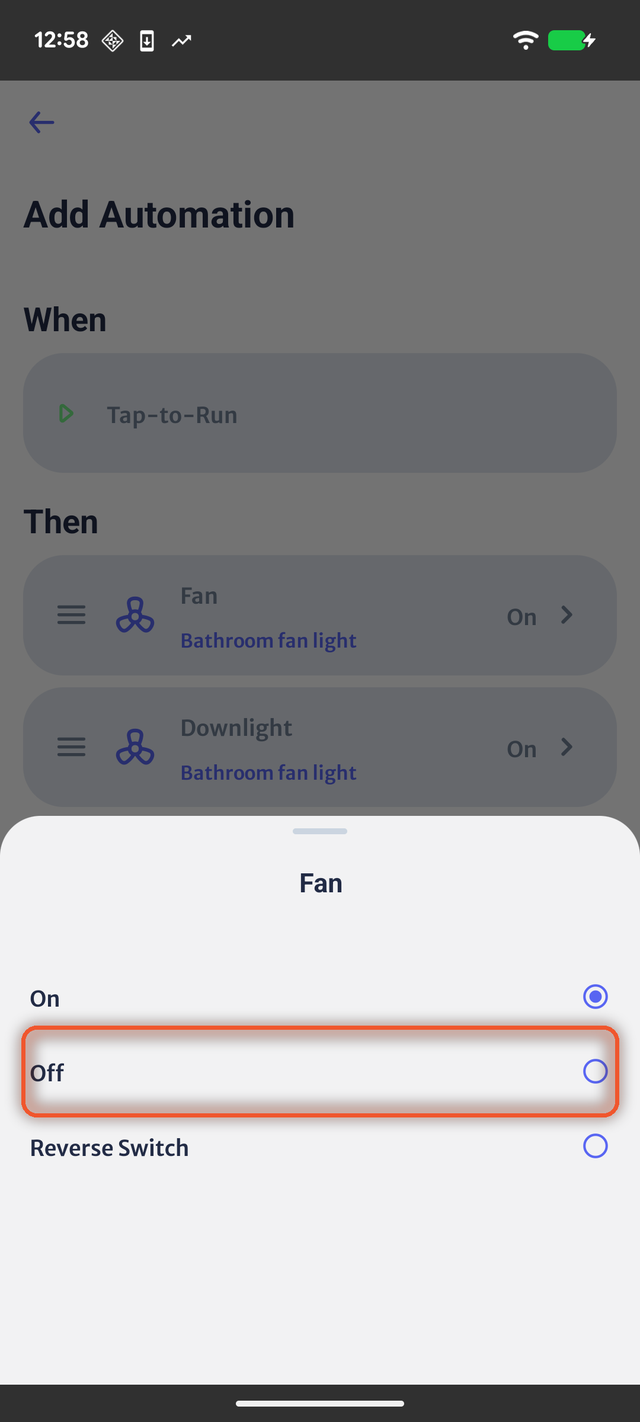
7Set each one to Off
Each switch you ticked is now a row, and each starts on On.
Tap a row, choose Off. Do the same for the second one.
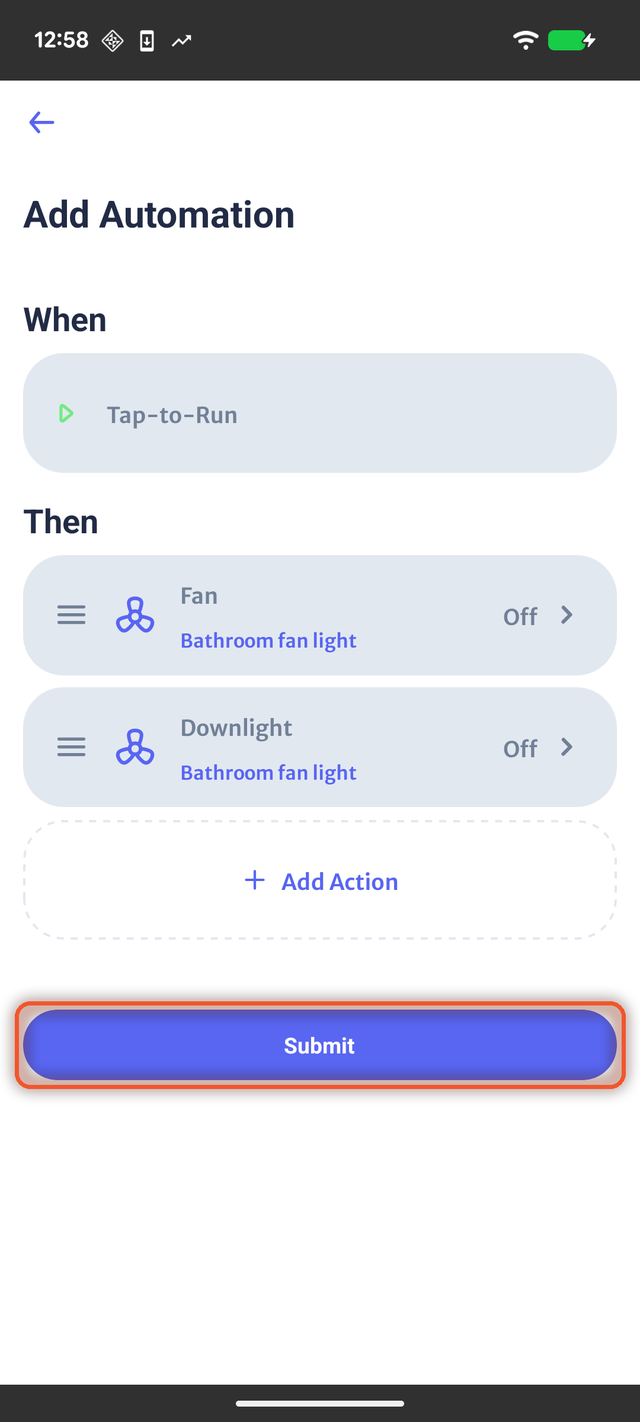
8Check, then Submit
Both rows should say Off. Tap Submit.
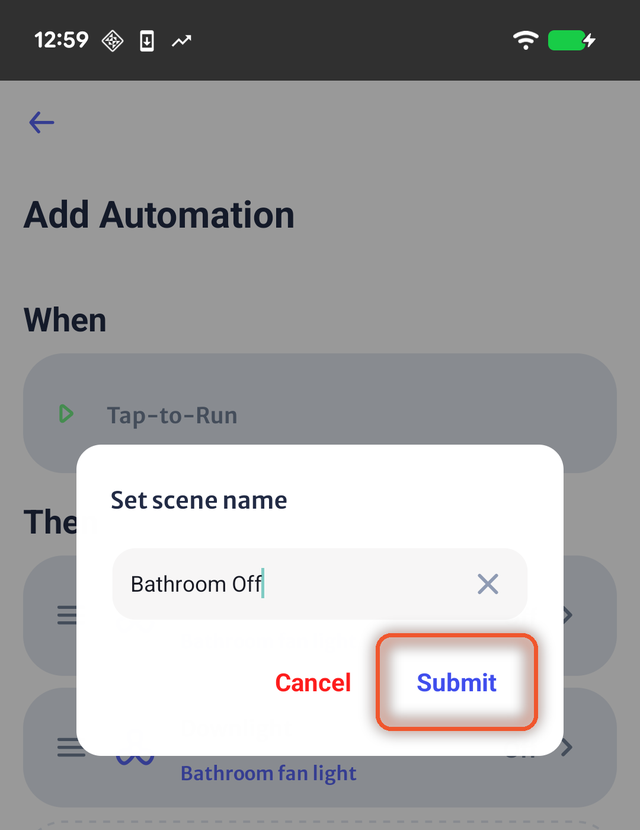
9Name it
Something you’ll recognise in a hurry — I used Bathroom Off. Tap Submit.
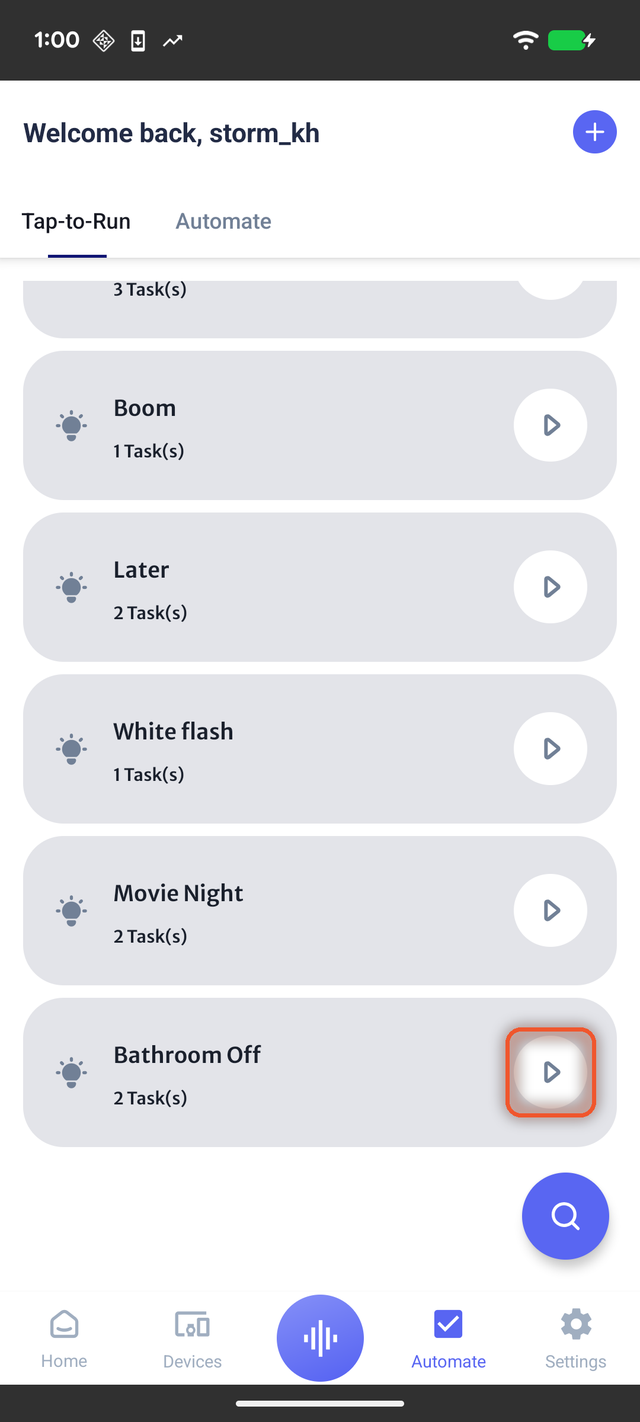
10Press play
Your scene is at the bottom of the list. Tap ▶ and the fan and light go off together.
Changing it later
Tap the scene’s name (not the ▶) to open it. Edit any row, or tap the pencil by the title to rename it.
Nothing saves until you tap Update. I rearranged two rows, backed out, and came back to find it exactly as before. Handy if you were only fiddling.
Three things worth knowing
Start small. Two switches you’ll actually use beats fourteen you have to debug.
Make the opposite scene too. If you build Bathroom Off, build Bathroom On. Getting out should be as easy as getting in.
Pressing it twice does nothing extra. A scene sets things to the state you saved — it doesn’t toggle. (The one exception is Reverse Switch in the On/Off list, which flips whatever the device currently is.)
Got a scene that misbehaves, or one you’re rather proud of? Tell me about it.